
You found a bug. You type: "the checkout button doesn't work." You submit. Three days later: "Can't reproduce. Closing."
That loop repeats thousands of times a day across every software team. Not because developers don't care — because the report didn't contain what they needed. "Checkout is broken" isn't a bug report. It's a complaint. A real bug report gives a developer everything they need to find the exact failure without asking a single follow-up question.
This guide breaks down every field a great bug report needs, shows bad vs. good examples for each one, and demonstrates how the best QA engineers on fast-moving teams capture all of it automatically — in under a minute, before the page even reloads.
#What is a bug report?
A bug report is a structured document that records a defect in software: what happened, what was expected, and the exact conditions that made it reproducible. Its only job is to let a developer who wasn't there reproduce the problem themselves.
The core formula never changes, regardless of platform or tool:
What I did → What I expected → What actually happened
Every additional field answers a follow-up question the developer would otherwise have to ask. The fewer questions they need to ask, the faster the fix.
#1. Title
The title is the first thing a developer reads. It determines whether a ticket gets triaged immediately or sits in a backlog. A bad title forces the developer to open the ticket just to understand what it's about.
"Login is broken"
"Something weird on checkout"
"Bug with the form"
"Admin login redirects to /404 after password reset — Chrome 124 / macOS 14"
"CSV export silent failure — no download, no error, admin accounts only"
"Quantity field accepts negative numbers on mobile checkout — iOS 17 Safari"
A good title answers: what broke, where, and under what condition. If you can add the OS and browser in parentheses, do it — it lets developers filter duplicates without opening anything.
You're filing a ticket in Jira, Linear, GitHub Issues, or any shared tracker. A precise title is the difference between a ticket that gets picked up and one that sits untouched.
A quick Slack message to a developer who's already in context with you. For synchronous conversation, the title can be a sentence fragment. For async tickets, never skip it.
How PlayLog handles this: PlayLog creates the session title from the page URL and timestamp the moment you stop recording. You start from something specific — Bug on localhost/checkout — instead of staring at a blank field. Edit it in one click if you need more precision.
#2. Steps to reproduce
Steps to reproduce are the most critical field in any bug report. Without them, a developer has no path to finding the failure. They have to guess at the sequence, test every permutation, and hope they stumble onto the right state.
Write steps as numbered instructions from a completely clean state — not "from the dashboard." If the bug only appears after certain prior actions, those actions are part of the sequence.
"Just go to the cart and click checkout — it breaks."
"I was testing the admin panel and something went wrong when I tried to export."
"Happens when you use the filters."
- Log in as admin ([email protected] / test1234) 2. Navigate to Reports → Sales 3. Set date range: Last 30 days 4. Click Export → CSV 5. Click Download in the confirmation modal Result: Nothing happens. No file downloads, no error appears, modal closes.
Every step must be atomic and sequential. "Navigate to the settings" is not a step — "Click the gear icon in the top-right corner, then select Account Settings" is.
Always. Steps to reproduce are non-negotiable for any bug filed in a tracker. A report without them is a note, not a bug report.
Only when the bug is a crash on startup or a failure that occurs before any user interaction — in those cases, "steps" is just "open the app."
How PlayLog handles this: PlayLog records every user action automatically — every click, scroll, keystroke, and navigation — synced to a millisecond timeline. When you stop recording, the full action sequence is already captured and included in the report. No writing from memory. No reconstructing what you did after the fact.
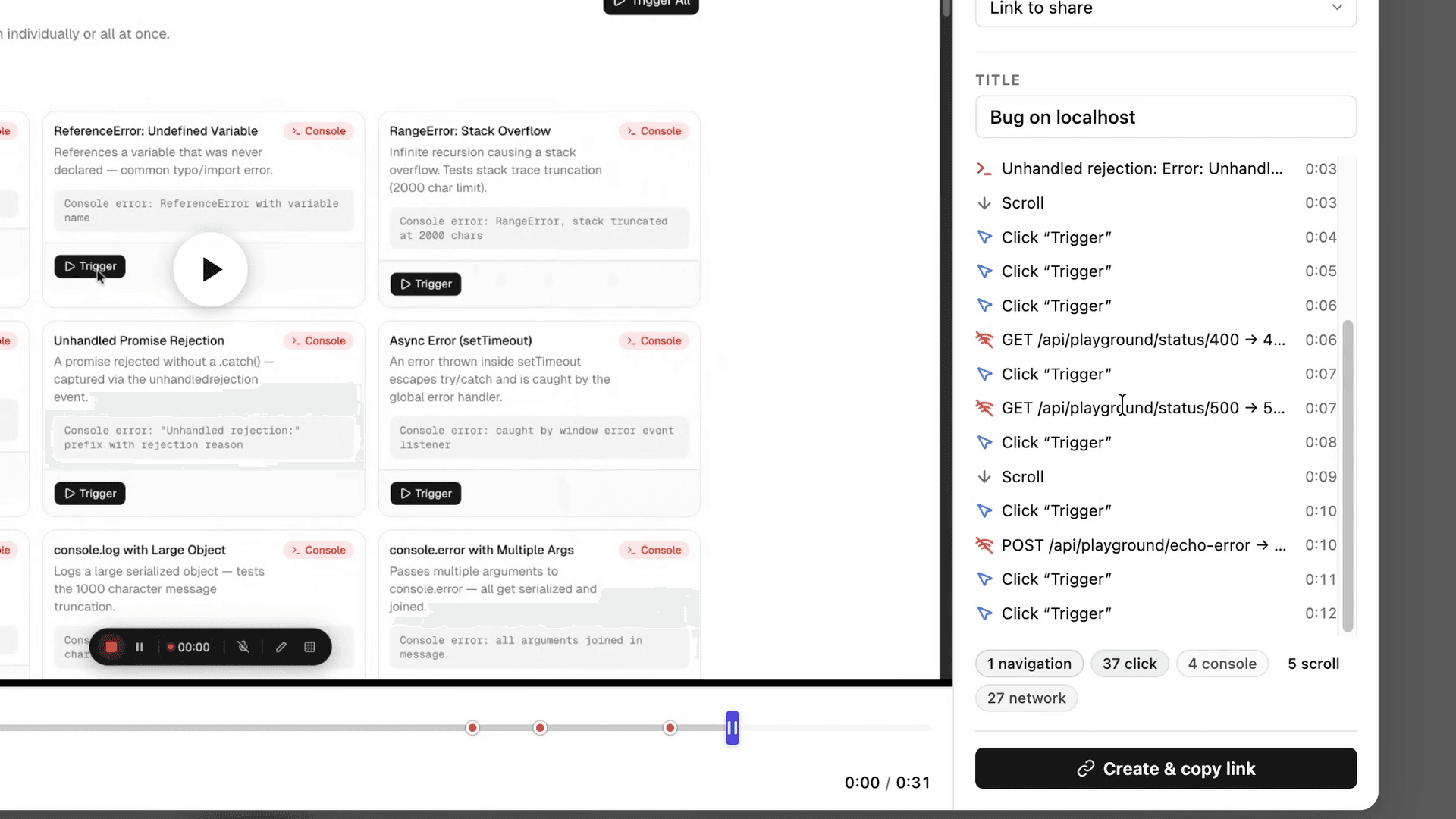
The session report shows each action labeled and timestamped: 0:03 Scroll, 0:05 Click *Trigger*, 0:07 GET /api/playground/status/500. A developer watching the replay sees exactly what you did, in order, frame by frame.
#3. Expected vs. actual behavior
These two fields are where most vague reports fall apart. Reporters describe what happened — sometimes — but rarely state what should have happened. Without the expected behavior, the developer doesn't know whether they're fixing a bug or explaining a feature.
"It didn't work."
"The page showed an error."
"The button did something weird."
Expected: Clicking "Submit Order" should create the order, deduct inventory, and redirect to /order/confirmation?id=12345.
Actual: Page stays on the checkout form. No redirect. No error message. The network tab shows a POST /api/orders returning 500 Internal Server Error with body {"error": "Simulated HTTP 500"}.
Copy error messages verbatim — never paraphrase. "An error occurred" and "ReferenceError: Cannot read properties of null (reading 'property')" are completely different problems. One is guesswork; the other is a stack trace the developer can search directly.
Any time the failure involves an error message, an unexpected redirect, missing data, or wrong output. If the actual result differs from what the UI implies should happen, both fields are required.
Visual regression bugs where a screenshot communicates both fields simultaneously — a broken layout is self-evident. Even then, one line of expected vs. actual text helps with triage.
How PlayLog handles this: PlayLog captures every console.log, console.warn, and console.error at the exact millisecond it fires, alongside the full error stack. The developer sees the JavaScript exception and the user action that caused it — not a paraphrase written from memory two hours later.
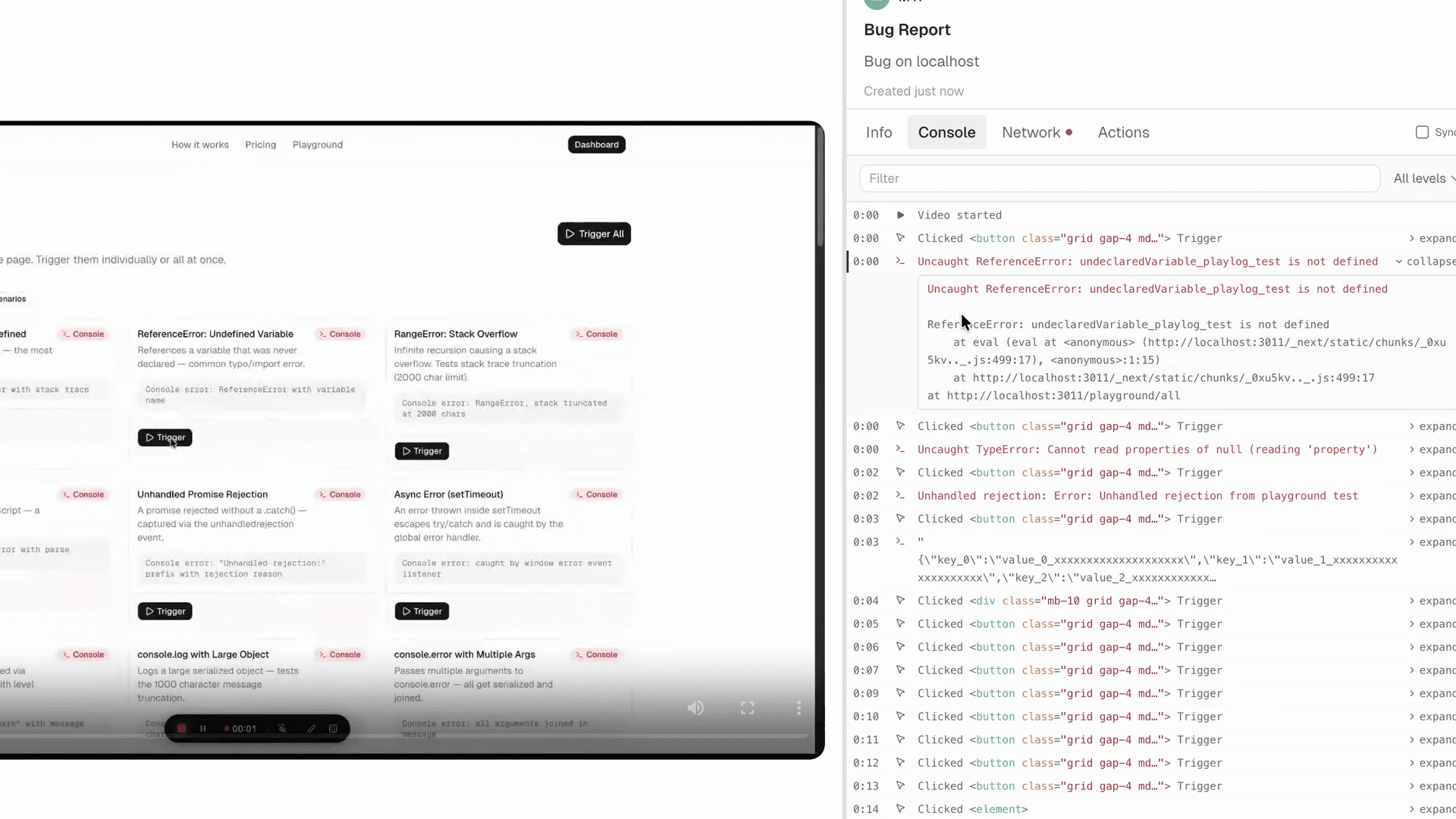
In the Console tab of a PlayLog bug report, every error is categorized: ReferenceError: undefined variable, RangeError: stack overflow, Unhandled Promise Rejection. Each one is timestamped and expandable. The developer never has to ask "what was the exact error?"
#4. Environment
The same code path can fail on one OS and work perfectly on another. On Chrome and not Safari. On iPhone 13 and not iPhone 15. Environment information is what lets a developer reproduce the failure on the right system — and skip testing every system they own.
"I'm using Chrome on my laptop."
"Happens on my computer but not my colleague's."
(No environment information provided at all)
- OS: macOS 14.4.1 (MacBook Pro M3) - Browser: Chrome 124.0.6367.82 - App version: Build 2026.04.22-rc1 - Viewport: 1440 × 900 - Network: Corporate VPN (Cisco AnyConnect) - Also tested on: Firefox 125.0 — same result. Safari 17.4 — could not reproduce.
The "also tested on" note is worth its weight in gold. Knowing the bug is Chrome-specific eliminates every Chromium-only code path. Knowing it also fails in Firefox rules that out immediately.
Any bug involving rendering, API calls, authentication, file uploads, or anything that touches browser APIs. Which is almost everything.
Pure backend bugs reproduced via API calls with no browser involved — though even then, include the client tool (curl, Postman, version).
How PlayLog handles this: Environment is captured automatically on every session — browser name and version, OS, viewport dimensions, device pixel ratio. You never open chrome://version. You never ask "wait, what OS were you on?" It's in every report, every time.
#5. Visual evidence
A screenshot proves the bug exists. A screen recording proves how to reach it. A recording with the console open proves why it's happening. Each level removes a category of doubt from the developer's mind.
A screenshot of the entire 27-inch monitor taken with a phone camera.
A recording where the relevant panel is minimized.
"I'd attach a screenshot but it's hard to explain visually."
A screen recording that starts from the clean state, follows the exact reproduction steps, and keeps the browser DevTools Network tab visible in the frame. The moment of failure — the failed request, the blank screen, the wrong redirect — is clearly visible.
If the bug is a UI layout issue, a screenshot is enough. If it's a flow issue, record the steps. If it involves network or JavaScript errors, keep DevTools open during the recording. The goal is zero ambiguity about what happened.
Every bug report. A text-only report is a last resort. Visual evidence is the fastest path from "I see what you mean" to "I found it."
Accessibility and screen reader bugs where screenshots don't capture the relevant behavior — describe the expected ARIA behavior and the actual output from the screen reader instead.
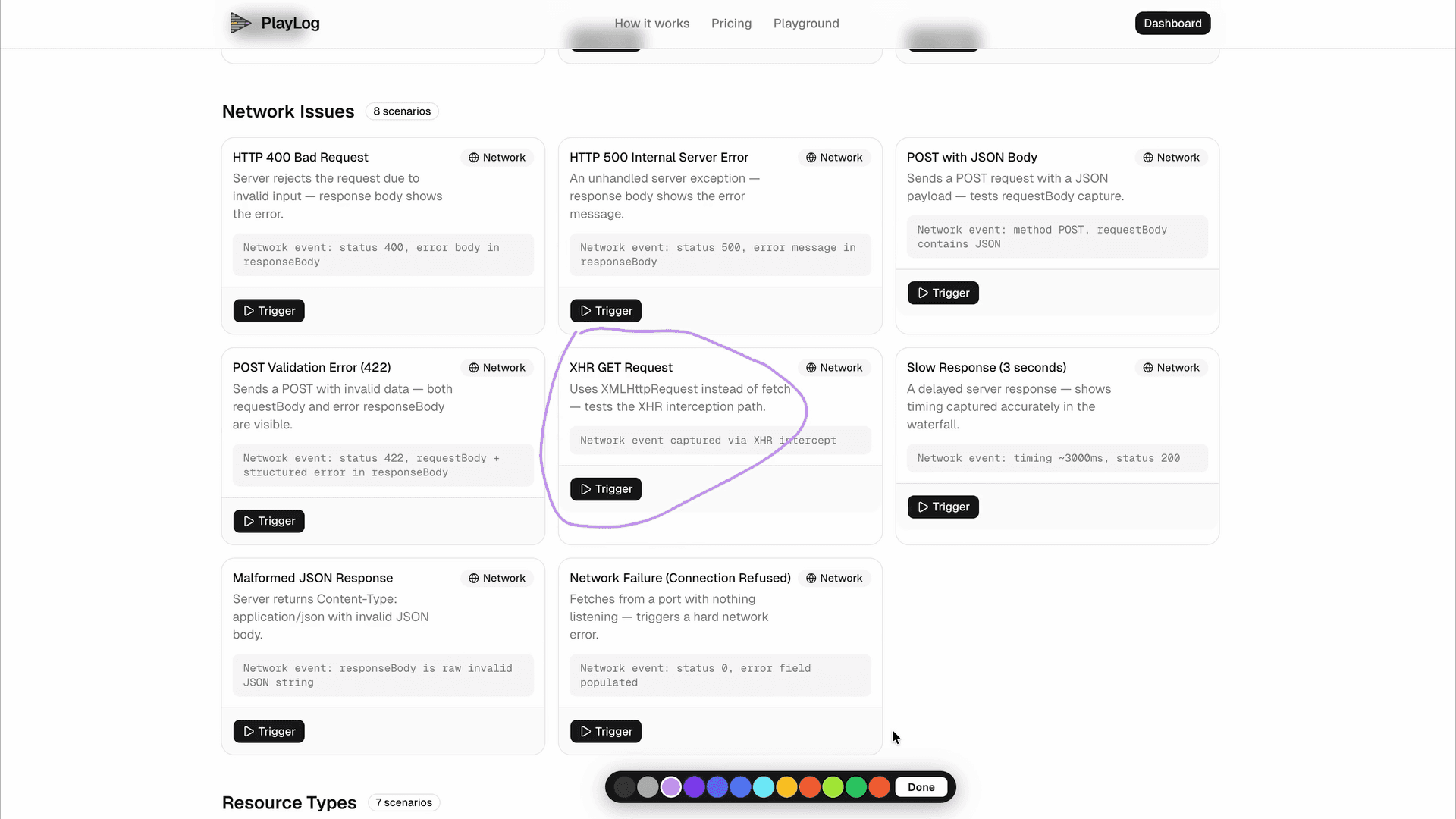
How PlayLog handles this: PlayLog records the full session as a synchronized screen recording and user action timeline. You don't need DevTools open — the console and network data are captured in parallel, overlaid on the same timeline. The developer scrubs to the exact second the error fired.
#6. Network requests
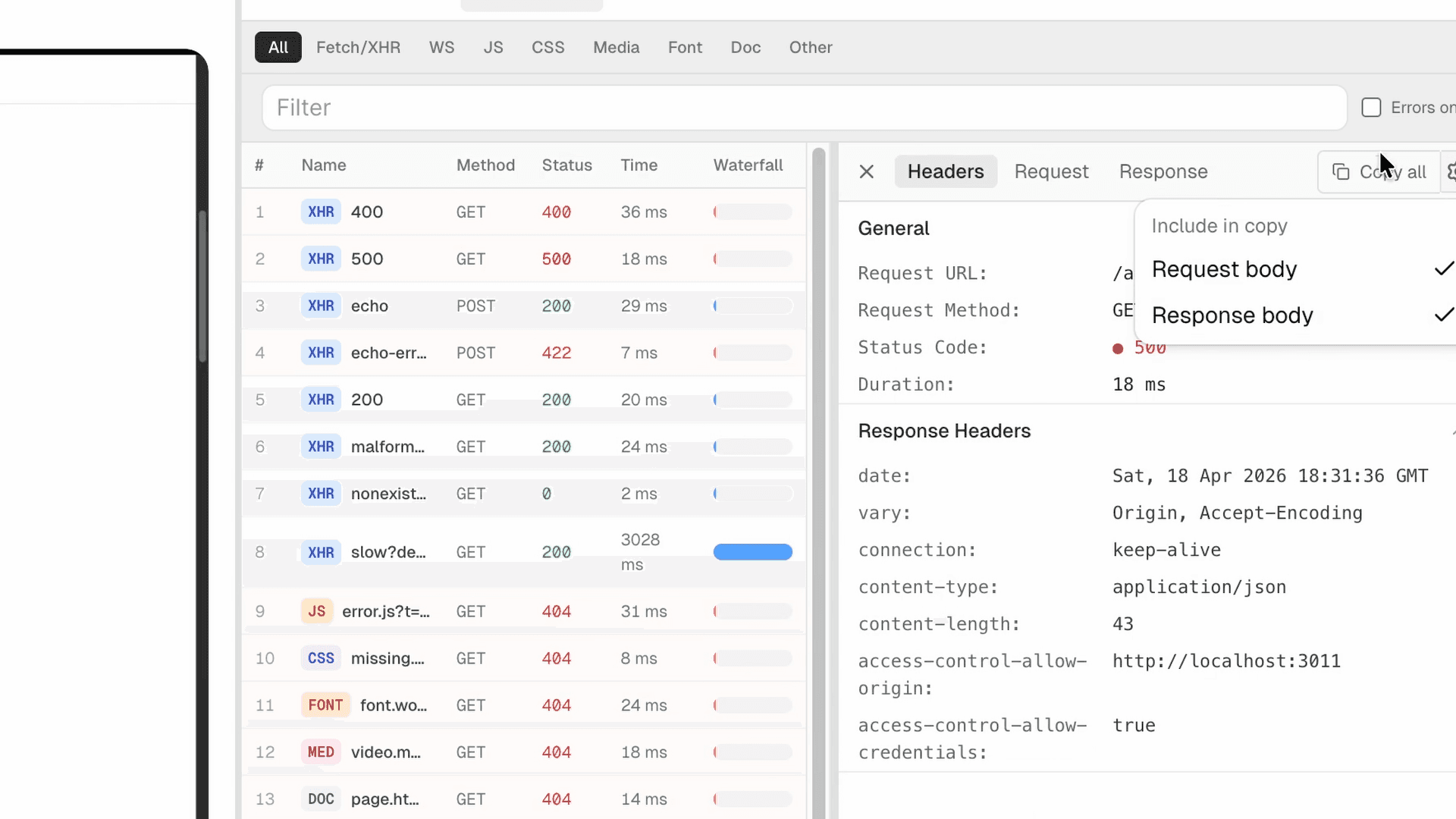
Network failures are the root cause of the majority of frontend bugs. A 404 on a required asset. A 500 from an API. A 422 from a validation endpoint returning an unexpected schema. Without the network context, a developer sees a broken UI — but has no idea which request caused it or what the server actually returned.
"The page shows an error after I submit."
"Something in the network is failing, I think."
A screenshot of the Network tab that's too small to read.
Failed request: POST /api/orders → 500 Internal Server Error
Request payload: {"productId": "abc123", "quantity": 1, "couponCode": "SAVE20"}
Response body: {"error": "Coupon validation service unavailable"}
Duration: 3028ms (timeout)
The response body is where the real information lives. Status codes give you the category. Response bodies give you the cause. A developer who sees {"error": "Coupon validation service unavailable"} knows exactly which microservice to check. A developer who sees 500 has to guess.
Any bug that involves data loading, form submission, authentication, file upload, or any user action that triggers an API call — which is most application bugs.
Pure CSS layout bugs on static pages with no API calls. Even then, check the Network tab first — a missing font or stylesheet 404 is often the cause of "visual" bugs.
How PlayLog handles this: PlayLog captures every network request in the session — method, URL, status code, request headers, request body, response headers, response body, and timing. Nothing requires opening DevTools. Nothing is missed because you didn't have the right filter active.
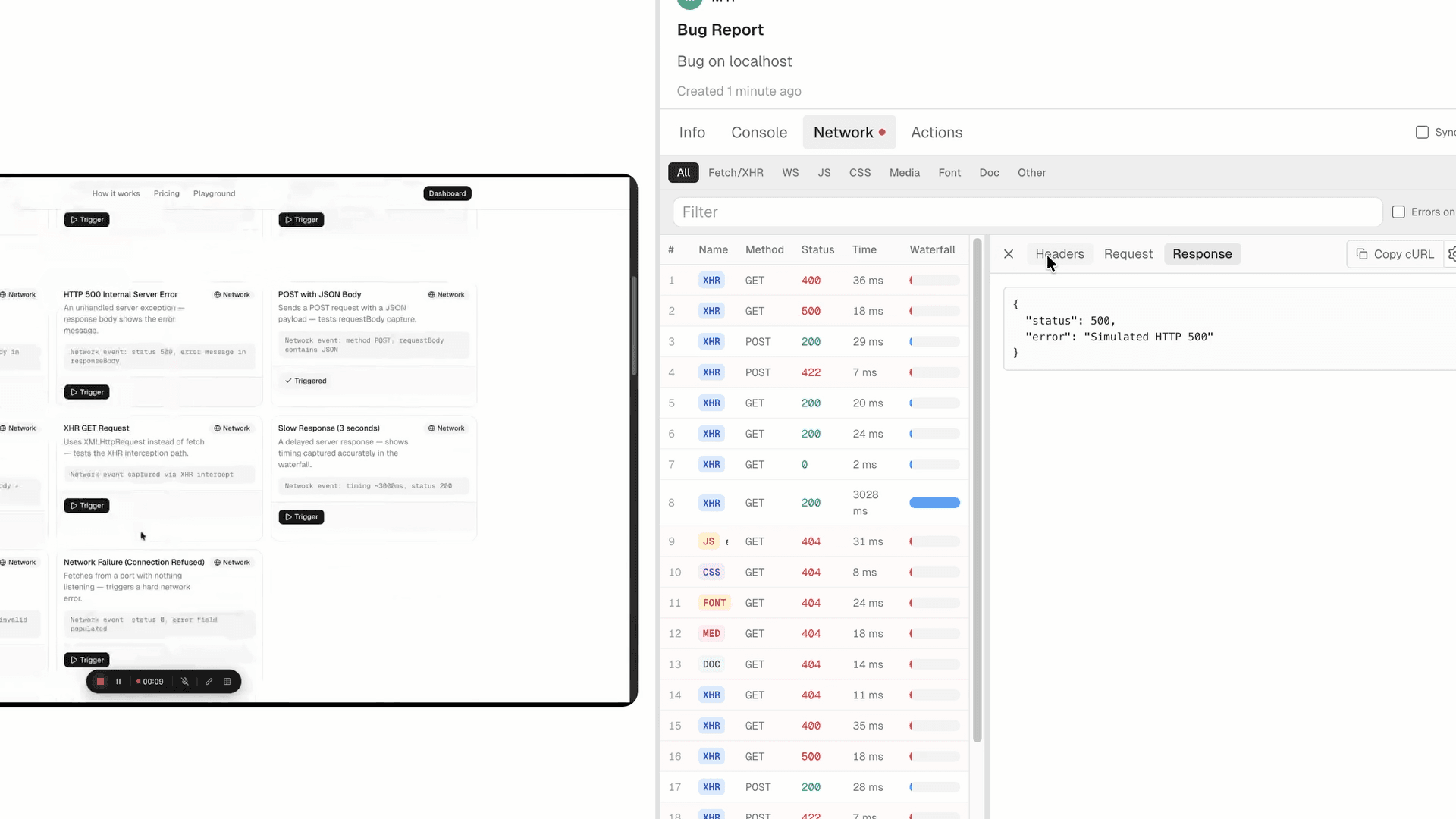
Need to share a specific request with the developer? One click copies the full request as a curl command — headers, payload, and endpoint — ready to paste into a terminal and reproduce server-side.
#7. Severity and frequency
A developer prioritizing a sprint needs to know two things beyond the reproduction steps: how bad is this, and how often does it happen? A bug that crashes the app for every user on checkout is not the same priority as a visual misalignment on a settings page that three people visit per month.
"This is urgent!!" (no context on who's affected or how often)
"Low priority I think." (no data to support the assessment)
(Severity omitted entirely)
Severity: Critical — blocks all checkout for logged-in users with items in cart.
Affected users: All users with an active session token (confirmed on 3 separate test accounts).
Frequency: Reproducible 100% of the time following the steps above. First observed after the 2026-04-22 deploy.
Workaround: Logging out and back in clears the session state and allows checkout. One-time fix per session.
A workaround note is particularly valuable — it tells the developer whether this is blocking production and whether a hotfix is needed before the full fix is deployed.
Any production bug or anything that affects the main user flow. Frequency and severity data directly inform sprint planning and release decisions.
Isolated cosmetic bugs in internal tools used by one person. Even then, a single sentence on frequency is better than nothing.
#The complete bug report: AI-ready in one click
Once you have all seven fields, you have a complete bug report. But writing all seven fields manually — from memory, after the fact, with copy-pasted errors and browser version lookups — takes five to ten minutes per report. For a QA engineer filing a dozen reports a day, that's an hour of documentation instead of testing.
PlayLog assembles all seven fields automatically from a single session recording. When you're done, one button copies the entire report as structured markdown — formatted specifically for AI coding tools.
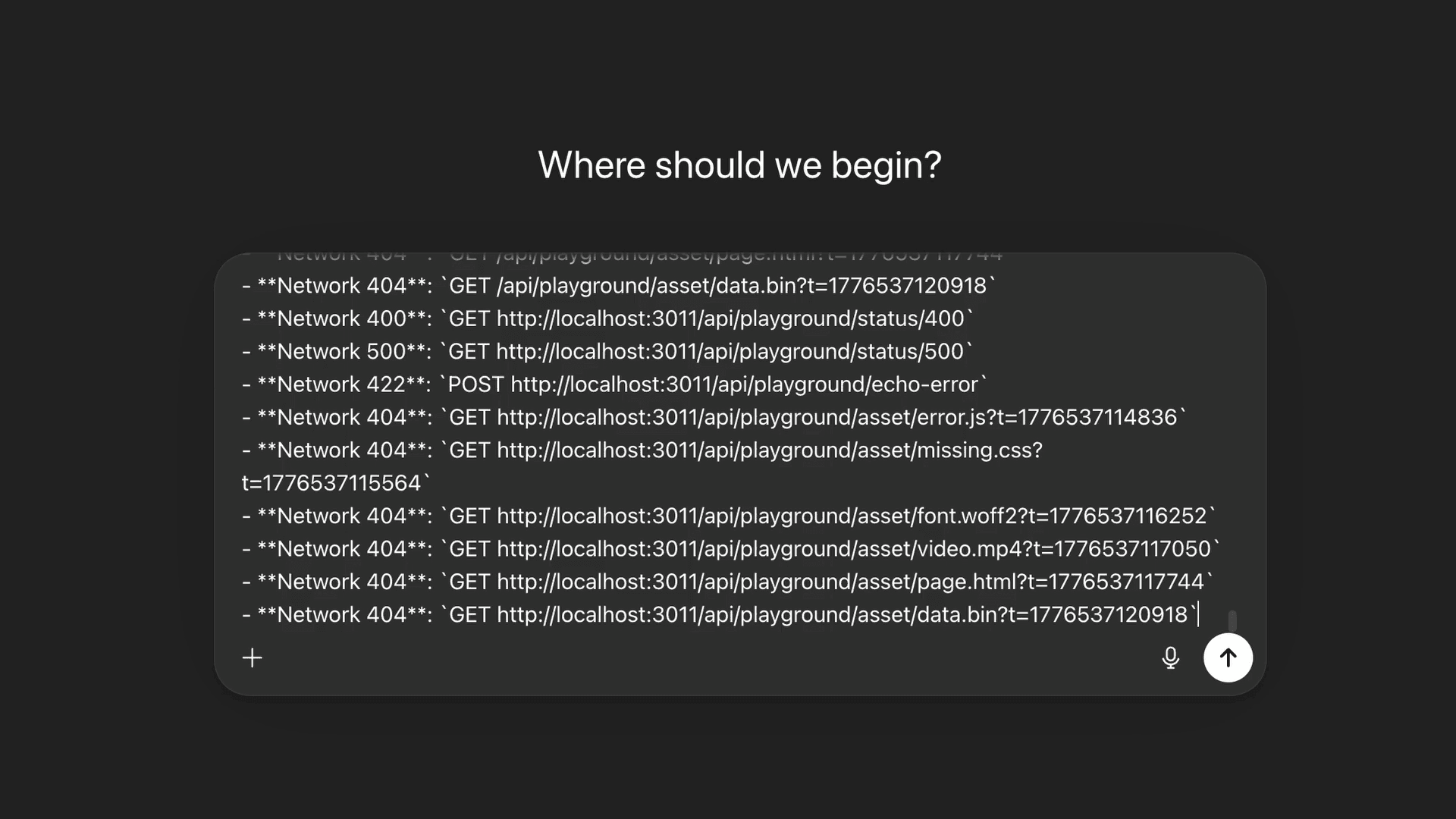
The markdown output includes:
- URL and session metadata
- Full user action timeline with timestamps
- Every console error with stack traces
- Every network request — method, status, response body
- Browser, OS, and viewport
- A structured summary your developer pastes directly into Cursor, Claude, or ChatGPT
The developer pastes it. The AI returns a fix. No back-and-forth. No "can you reproduce this?" No "what was the exact error?" The report is the prompt.
#How to submit a bug report on any platform
#In Chrome
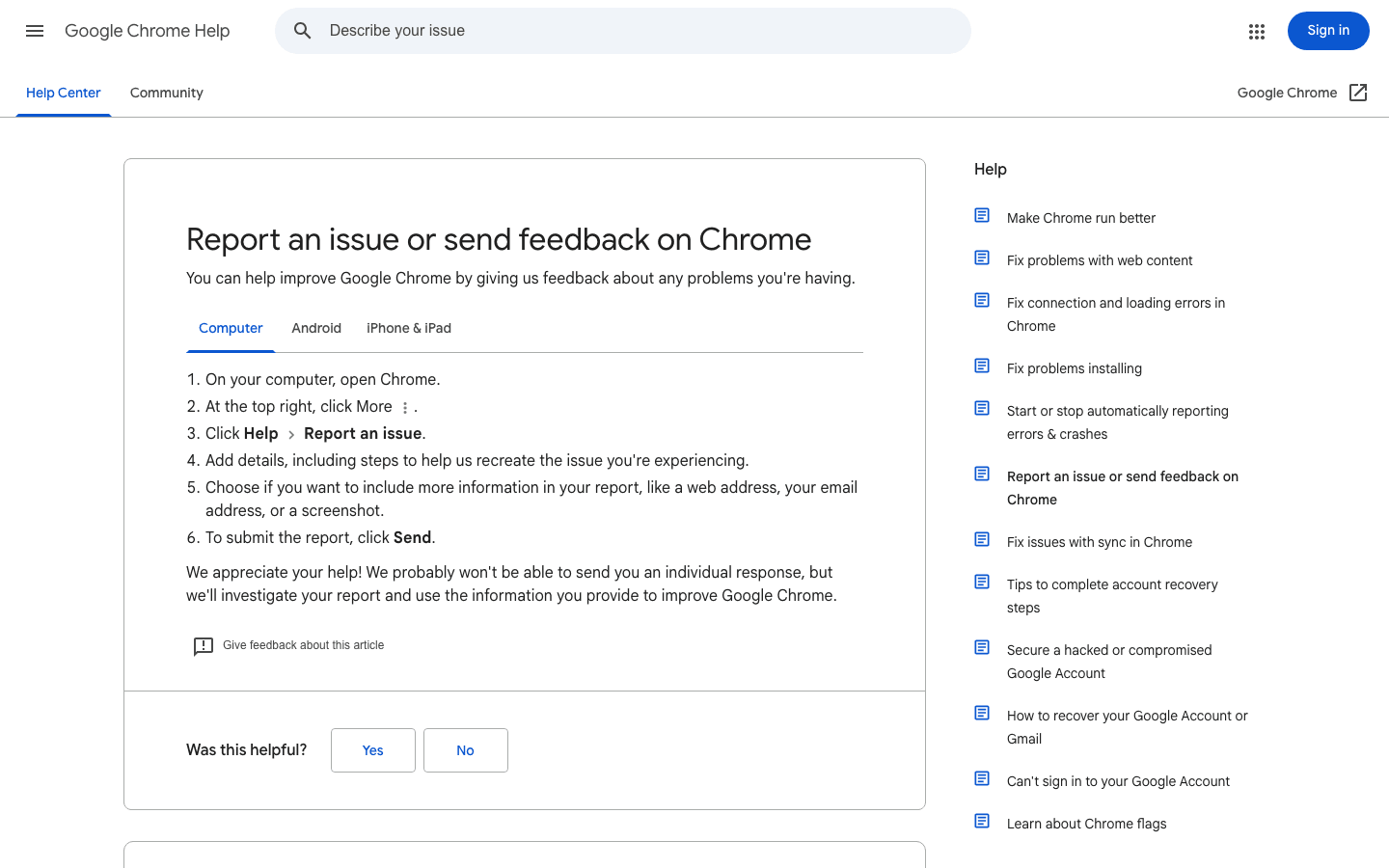
Chrome's built-in feedback tool is accessible from any page and sends your report directly to Google.
Stay on the page where the issue occurs
Before opening the form, stay on the affected page. Chrome captures the current URL automatically.
Open the feedback form
Three-dot menu → Help → Report an issue. Shortcut: Option+Shift+I on Mac, Alt+Shift+I on Windows.
Describe the issue specifically
Apply the same formula: what you did, what you expected, what happened. Chrome's team processes many reports — vague descriptions are the first to be deprioritized.
Attach the URL and screenshot
Chrome offers to include the current page URL, your email, and a screenshot. Include all three.
Your browser version and OS are attached to every Chrome feedback report. You don't need to include them manually.
#On Android
Android bug reports are technical documents aimed at developers. They include device logs (logcat), stack traces, diagnostic output (dumpsys), and performance data.
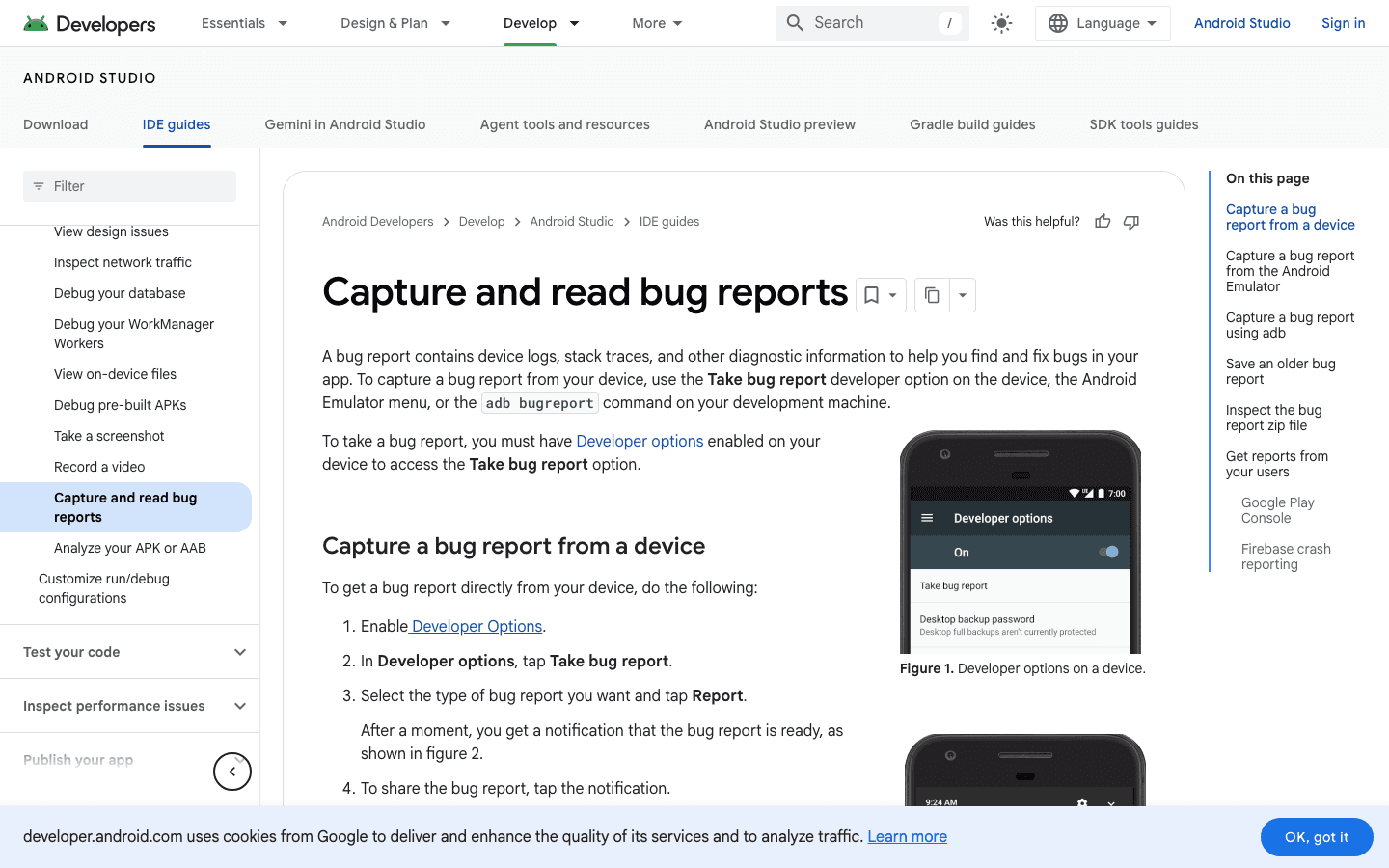
From the device: Settings → Developer Options → Bug report → Full report. The device generates a .zip and sends a notification when it's ready to share.
Via adb: adb bugreport from your terminal with a device connected. Output is a .zip in your current directory.
From Android Emulator: Android Studio → Emulator toolbar → More → Extended Controls → Bug report. Add a description with reproduction notes before generating.
#On GitHub Issues
Many open-source projects include an issue template that structures the fields automatically.
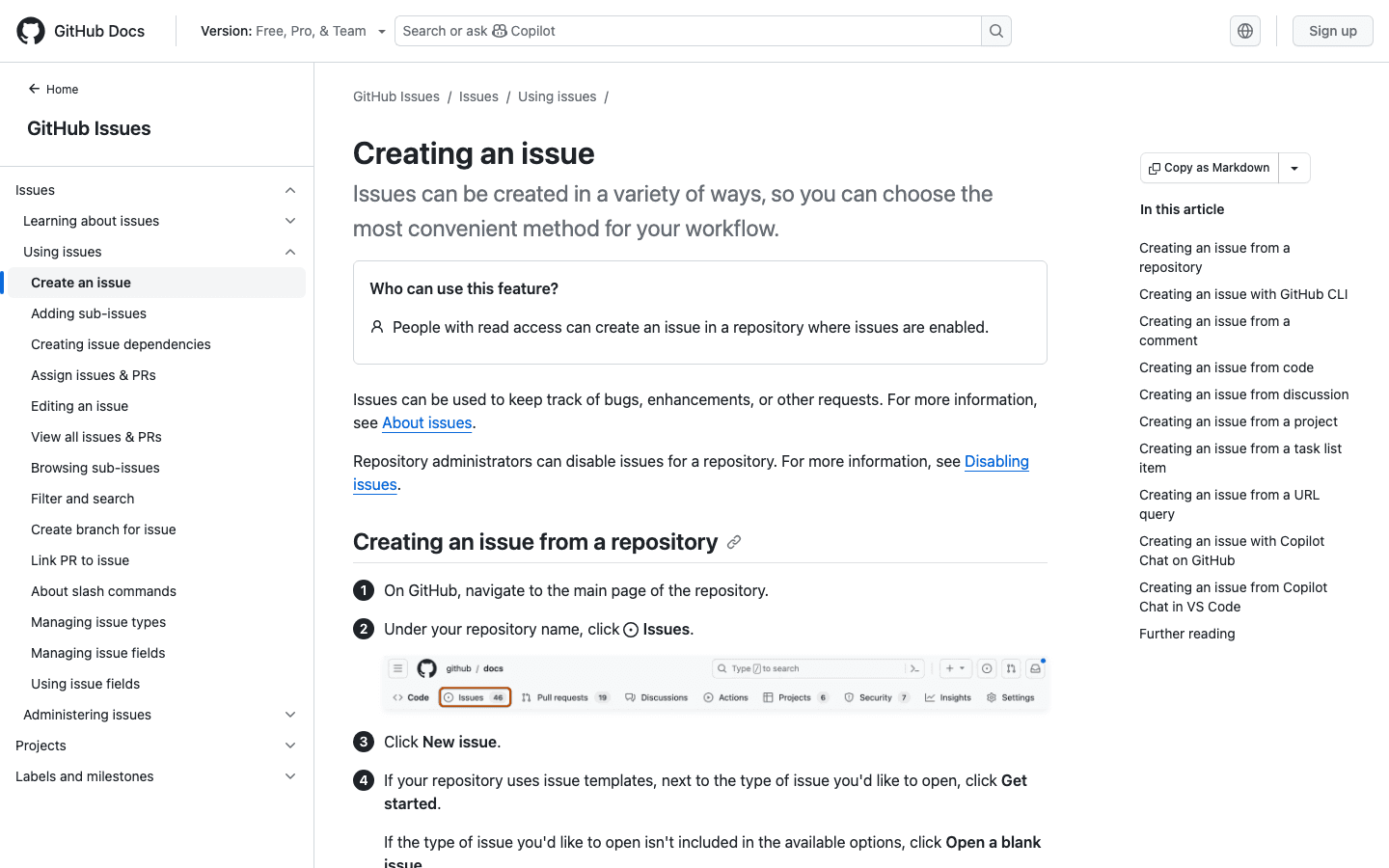
When a template exists, use it. Skipping template fields is the fastest path to a report being closed without action. If there's no template, the seven fields above apply directly.
#On Apple platforms
Apple's feedback portal at apple.com/feedback accepts reports for all Apple software and hardware.
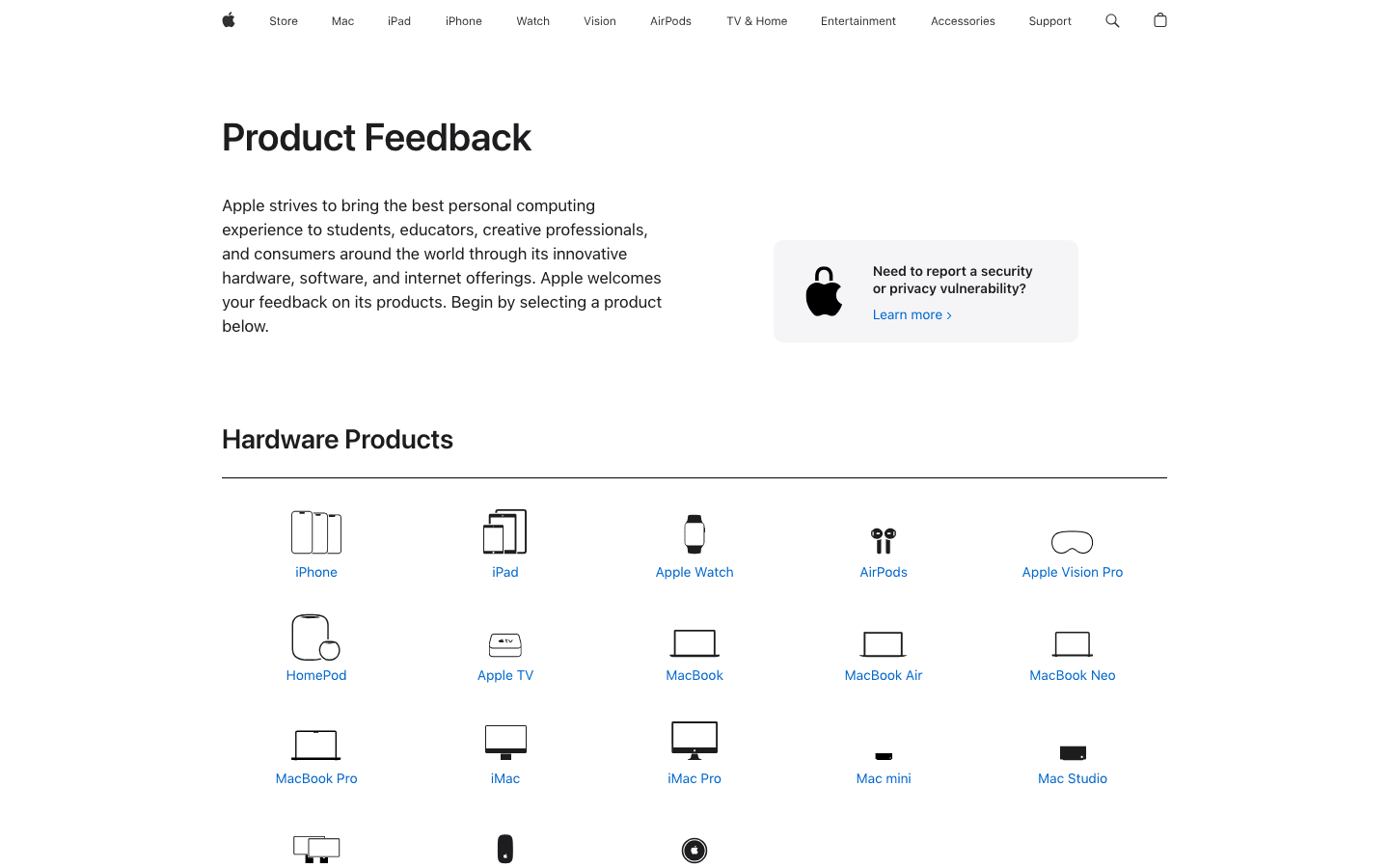
For developers targeting Apple platforms, Feedback Assistant (feedbackassistant.apple.com) accepts technical reports with sysdiagnose logs and crash reports attached.
#The complete checklist before you submit
Before filing any report, run through these four checks:
1. Reproduce it at least twice from a clean state. A one-time occurrence is a suspicion, not a confirmed bug. If you can't reproduce it, your report needs to say so explicitly.
2. Check for known issues. Search the issue tracker and status page. A duplicate wastes time for everyone.
3. Isolate your environment. Disable extensions. Try a different browser. Clear cache. If the bug disappears, that change is a clue — include it in the report.
4. Confirm it's actually a bug. Some unexpected behaviors are documented features. A quick search before filing avoids a developer response that's just a link to the docs.
The seven fields in this guide — title, steps, expected behavior, actual behavior, environment, visual evidence, network requests, severity — are what turn a complaint into a fixable ticket. Every one of them is captured automatically by PlayLog from a single session recording. You reproduce the bug once. Everything else is handled.